Ringtone Picker を使う(Android)

2012年6月23日

Ringtoneを選択する画面(Ringtone Picker)を表示する

    	Intent intent = new Intent(RingtoneManager.ACTION_RINGTONE_PICKER);
    	startActivityForResult(intent, 0);

選択されたRingtoneのUriを取得する

    protected void onActivityResult(int requestCode, int resultCode, Intent data) {
        if (requestCode == 0) {
            if (resultCode == RESULT_OK) {
            	//If the EXTRA_OUTPUT is not present, then a small sized image is returned as a Bitmap object in the extra field. 
            	Bundle b = data.getExtras();
                Set keys = b.keySet();
                Iterator k = keys.iterator();
                while(k.hasNext()) {
                    String key = k.next();
                    if(key.equals(RingtoneManager.EXTRA_RINGTONE_PICKED_URI)) {
                        Object o = b.get(key);                		
                        mRtUri = (Uri)o;
                        if(mRtUri != null) {

                        }
                        break;
                     }
                }
            }
        }
    }
Beep音を出す(Android)

2012年6月23日

Beep音を鳴らす。

Ringtone を使うには、RingtoneのURIを指定して、RingtoneManager.getRingtone() を呼び出し、Ringtone を取得。

取得したRingtone の start() と stop() を呼び出す。

※このコードはエミュレータではエラーになる。(Settings.System.DEFAULT_RINGTONE_URI=null になってしまう)

    private void beep(int ms) {
        Uri rturi = Settings.System.DEFAULT_RINGTONE_URI;
        if(rturi != null) {
            Ringtone rt = RingtoneManager.getRingtone(this.getContext(), rturi);
            if(rt != null) {
                rt.play();                
                try {
                    Thread.sleep(ms);
                } catch (InterruptedException e) {
                    // TODO Auto-generated catch block
                    e.printStackTrace();
                }
                rt.stop();                
            }
        }        
    }
他にも以下のようなものを使って音を出せる。

Custom Dialog を作成 (Android)

2012年6月22日

別にMainのViewをもつActivityの中で使用するCustom Dialog を作成してみる。

Dev Guideにある以下のページを参照。丁寧に書いてあるので、ほぼこのページとそこのリンクだけの情報で作成できる。
http://developer.android.com/guide/topics/ui/dialogs.html#CustomDialog
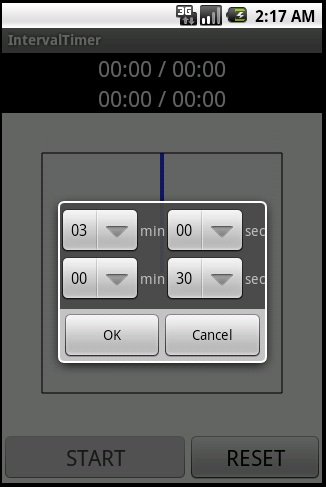
今回は、タイマーの時間をセットするだけの簡単なものなので、AlertDialogを使用する。
引っかかってしまった点が1つだけあった。Dev GuideにあるAlertDialogを作成するコード例では
OnCreatedDialog() でDialogをcreateするコードの中で、LayoutInflater を取得するところが

 
    	Context mContext = getApplicationContext();
    	LayoutInflater inflater = (LayoutInflater) mContext.getSystemService(LAYOUT_INFLATER_SERVICE);

となっていたが、Activityクラスで作成するときは、Context は getApplicationContext() で取得するものでは例外が発生してしまった。API Demo のソースなどを参照し、下のように this つまりActivity クラス自身を指定すると例外はなくなった。

 
    	LayoutInflater inflater = (LayoutInflater) this.getSystemService(LAYOUT_INFLATER_SERVICE);

このあとは、DevGuideのサンプル通りに、以下のようなコードで実装できた。
なお、setView() でカスタムのレイアウトを指定しても、setNegativeButton()、setPositiveButton() を指定すると、ボタンはそのレイアウトの下に表示された。つまり、カスタムのレイアウトのなかにはOKやCancelのボタンは不要ということになる。

 
    	AlertDialog.Builder builder;
    	AlertDialog dialog;
    	LayoutInflater inflater = (LayoutInflater) this.getSystemService(LAYOUT_INFLATER_SERVICE);
    	final View layout = inflater.inflate(R.layout.timer_setting_dialog, null)
        //Custom Dialog 内のコントロールの初期化処理
        Spinner spn1 = (Spinner)layout.findViewById(R.id.spinner1);
        ArrayAdapter adapter1 = new ArrayAdapter(this, android.R.layout.simple_spinner_item);
        adapter1.setDropDownViewResource(android.R.layout.simple_spinner_dropdown_item);
        for(int i = 0; i<100; i++) {
        	adapter1.add(String.format("%02d", i));
        }
        spn1.setAdapter(adapter1);
        //(省略)

        //AlertDialog.Builderを使う
    	builder = new AlertDialog.Builder(this);
    	builder.setView(layout);
    	builder.setNegativeButton(R.string.cancel, new DialogInterface.OnClickListener() {
            public void onClick(DialogInterface dialog, int whichButton) {
            }
        });
    	builder.setPositiveButton(R.string.ok, new DialogInterface.OnClickListener() {
            public void onClick(DialogInterface dialog, int whichButton) {
                //(省略)
            }
        });
    	dialog = builder.create();
Custom Dialog

Custom Dialog

iPhone/iPadでPicasaを使う(画像のプレビューまで)

2012年5月13日

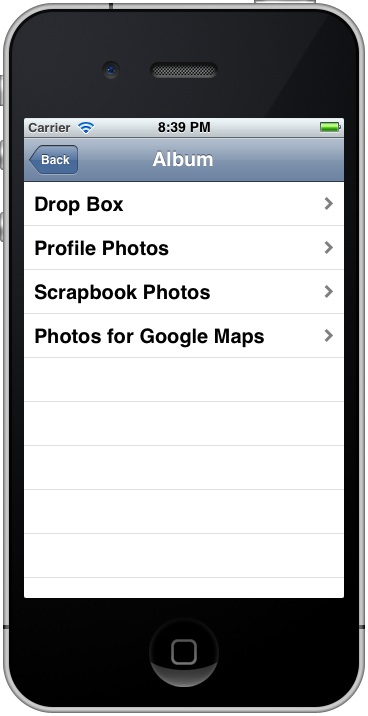
Picasaを使う(iPhone)でPicasaWebAlbumのAPIでアルバム一覧を取得するところまでやったので、今回は画像のプレビューまで実装してみた。(ソース)

iPhone版の画面

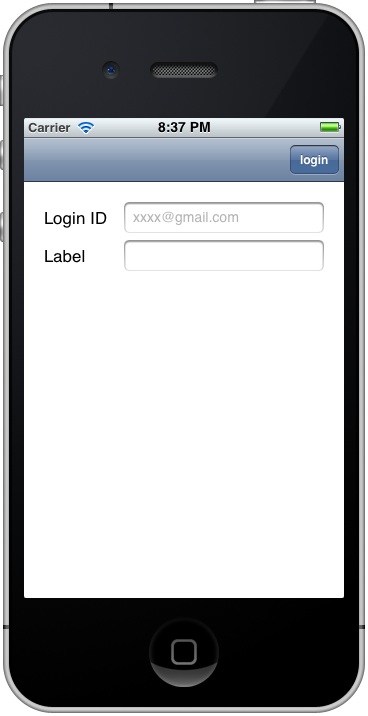
Login画面(iPhone)

Login画面(iPhone)

Album一覧(iPhone)

Album一覧(iPhone)

写真一覧(iPhone)

写真一覧(iPhone)

続きを読む »

Custum View をXMLのレイアウトに加える(Android)

2012年3月3日

タイマーの残り時間を表示する簡単なCustom View を作成し、既存のGUIコンポーネントと一緒にXMLのレイアウトに組み込む。

参照ページ

Custom View を実装

android.view.Viewを継承したクラスを作成し、onDraw(Canvas canvas) をオーバーライドして描画ロジックを実装するだけ。但し、XMLのレイアウトに組み込むには、さらに以下の2つの形式のコンストラクタも実装する必要がある。

public View (Context context)

public View (Context context, AttributeSet attrs)

Layoutに組み込む

このCustomViewをXMLのレイアウトに組み込むには、ただ、CustomViewのクラス名をフルパスで指定するだけでよい。

    <TextView
        android:id="@+id/textView1"
        android:layout_alignParentTop="true"
        android:layout_width="fill_parent"
        android:layout_height="wrap_content"
        android:textAppearance="?android:attr/textAppearanceLarge" />

    <stndstn.intervaltimer.TimerView
        android:id="@+id/timerview"
        android:layout_width="fill_parent"
        android:layout_height="wrap_content"
        android:layout_below="@+id/textView1"
        android:layout_centerHorizontal="true"
    />

これはLayout.xmlの一部で、上は通常のTextView、下が今回作成したCustomView。

クラス名をフルパスで設定する以外は、手でXMLのレイアウトを編集するときと同じ要領。

Re-installation failed due to different application signatures. が出たとき

2012年2月18日

Emulatorでアプリをデバッグしようとしたとき、以下のようなエラーが発生した

[2012-02-18 16:54:35 - IntervalTimer] Installing IntervalTimer.apk...
[2012-02-18 16:54:46 - IntervalTimer] Re-installation failed due to different application signatures.
[2012-02-18 16:54:46 - IntervalTimer] You must perform a full uninstall of the application. WARNING: This will remove the application data!
[2012-02-18 16:54:46 - IntervalTimer] Please execute 'adb uninstall stndstn.intervaltimer' in a shell.
[2012-02-18 16:54:46 - IntervalTimer] Launch canceled!

adb は SDKの /platform-tools フォルダ にあった。Emulatorが起動した状態で、SDKの /platform-tools フォルダで以下のコマンドを実行し、解消できた。

$ ./adb uninstall stndstn.intervaltimer

NSManagedObjectModelでTableViewのデータを管理する

2011年12月23日

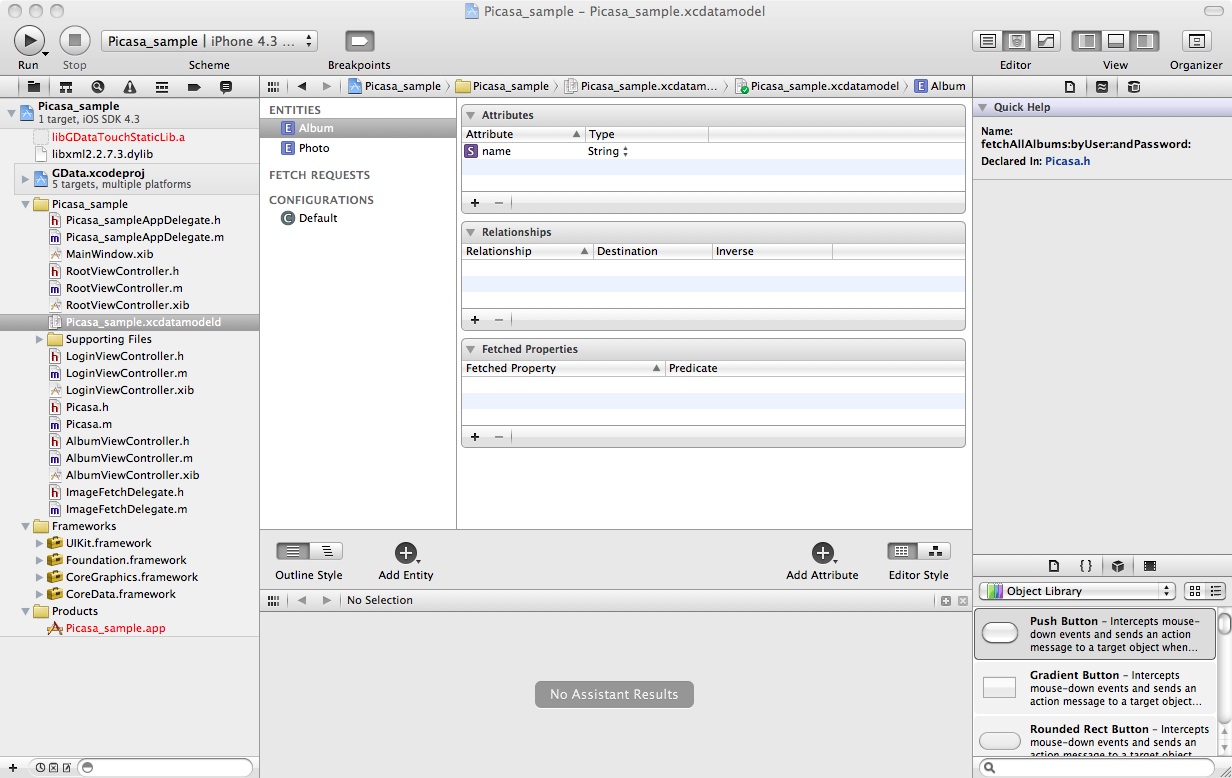
xcdatamodel でデータモデルを定義

xcdatamodelにデータモデルを定義

TableViewControllerもこれにあわせて変更

まずは、Viewに関連付けるEntityを指定

- (NSFetchedResultsController *)fetchedResultsController
{
    if (__fetchedResultsController != nil)
    {
        return __fetchedResultsController;
    }

    /*
     Set up the fetched results controller.
    */
    // Create the fetch request for the entity.
    NSFetchRequest *fetchRequest = [[NSFetchRequest alloc] init];
    // Edit the entity name as appropriate.(*defined in xcdatamodel)
    NSEntityDescription *entity = [NSEntityDescription entityForName:@"Album" inManagedObjectContext:self.managedObjectContext];
    [fetchRequest setEntity:entity];

    // Set the batch size to a suitable number.
    [fetchRequest setFetchBatchSize:20];

    // Edit the sort key as appropriate.(*defined in xcdatamodel)
    NSSortDescriptor *sortDescriptor = [[NSSortDescriptor alloc] initWithKey:@"name" ascending:NO];
    NSArray *sortDescriptors = [[NSArray alloc] initWithObjects:sortDescriptor, nil];

    [fetchRequest setSortDescriptors:sortDescriptors];

    // Edit the section name key path and cache name if appropriate.
    // nil for section name key path means "no sections".
    NSFetchedResultsController *aFetchedResultsController = [[NSFetchedResultsController alloc] initWithFetchRequest:fetchRequest managedObjectContext:self.managedObjectContext sectionNameKeyPath:nil cacheName:@"Root"];
    aFetchedResultsController.delegate = self;
    self.fetchedResultsController = aFetchedResultsController;

    [aFetchedResultsController release];
    [fetchRequest release];
    [sortDescriptor release];
    [sortDescriptors release];

    NSError *error = nil;
    if (![self.fetchedResultsController performFetch:&error])
        {
        /*
         Replace this implementation with code to handle the error appropriately.

         abort() causes the application to generate a crash log and terminate. You should not use this function in a shipping application, although it may be useful during development. If it is not possible to recover from the error, display an alert panel that instructs the user to quit the application by pressing the Home button.
         */
        NSLog(@"Unresolved error %@, %@", error, [error userInfo]);
        abort();
    }

    return __fetchedResultsController;
}

次にセルデータの表示のためのコードを編集

// Customize the appearance of table view cells.
- (UITableViewCell *)tableView:(UITableView *)tableView cellForRowAtIndexPath:(NSIndexPath *)indexPath
{
    static NSString *CellIdentifier = @"Cell";

    UITableViewCell *cell = [tableView dequeueReusableCellWithIdentifier:CellIdentifier];
    if (cell == nil) {
        cell = [[[UITableViewCell alloc] initWithStyle:UITableViewCellStyleDefault reuseIdentifier:CellIdentifier] autorelease];
    }

    // Configure the cell.
    [self configureCell:cell atIndexPath:indexPath];
    return cell;
}
- (void)configureCell:(UITableViewCell *)cell atIndexPath:(NSIndexPath *)indexPath
{
    NSManagedObject *managedObject = [self.fetchedResultsController objectAtIndexPath:indexPath];
    cell.textLabel.text = [[managedObject valueForKey:@"name"] description];
}

TableView の ManagedObjectContextにデータを設定する

このコードはTableViewの外でもよい。ここで、mFetchedResultsController は、TableViewの fetchedResultsController で取得した NSFetchedResultsController 。

既存データをクリア

Entity毎にクリアできるメソッドが見つからなかったので、1つずつ削除してみた。

    //clear existing data
    NSArray *fetchedObjects = [mFetchedResultsController fetchedObjects];
    NSEnumerator *enumerator = [fetchedObjects objectEnumerator];
    NSManagedObject *object;
    while ((object = [enumerator nextObject])) {
        [[mFetchedResultsController managedObjectContext] deleteObject:object];        
    }    

データをInsertする。

            //
            // insert into managedObjectContext
            //
            // Create a new instance of the entity managed by the fetched results controller.
            NSManagedObjectContext *context = [mFetchedResultsController managedObjectContext];
            NSEntityDescription *entity = [[mFetchedResultsController fetchRequest] entity];
            NSManagedObject *newManagedObject = [NSEntityDescription insertNewObjectForEntityForName:[entity name] inManagedObjectContext:context];

            [newManagedObject setValue:title forKey:@"name"];

            // Save the context.
            NSError *error = nil;
            if (![context save:&error])
            {
                /*
                 Replace this implementation with code to handle the error appropriately.

                 abort() causes the application to generate a crash log and terminate. You should not use this function in a shipping application, although it may be useful during development. If it is not possible to recover from the error, display an alert panel that instructs the user to quit the application by pressing the Home button.
                 */
                NSLog(@"Unresolved error %@, %@", error, [error userInfo]);
                abort();
            }
            //

persistentStoreCoordinatorでエラーになるとき

データモデルを変更した後、AppDelegate の persistentStoreCoordinatorでエラーになるときは、自動生成されるコメントに書いてあるように、一度既存のデータファイルを削除してみる。

//deleting the existing store
 [[NSFileManager defaultManager] removeItemAtURL:storeURL error:nil];

画像をViewerで開く

2011年11月3日
 File f = new File(ファイル名);
 Uri data = Uri.fromFile(f);
 Intent intent = new Intent(Intent.ACTION_VIEW);
 intent.setDataAndType(data, "image/jpeg");
 startActivity(intent);

Navigation-basedだけど最初の画面はTableViewにしたくないとき

2011年10月27日

Navigation-based applicationでプロジェクトを作成したが、最初の画面はTableViewにしたくないとき

  1. 新たにUIViewControllerクラスを追加(XIBファイル付きで)
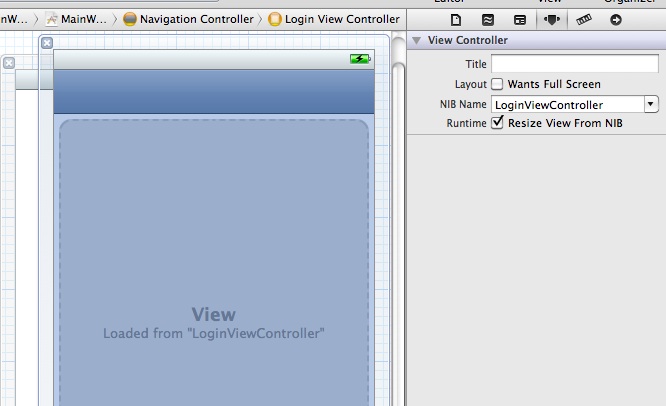
  2. MainWindow.xib の Objects 内にある Navigation Controller の下の Root View Controller について
    1. 名前を変える
    2. Attributes Inspector にある NIB Name を、上で作成したXIB Name に変える

      Change NIB name of RootViewController

      RootViewController の NIB name を変更

    3. Identiy Inspector にある Class を、上で作成したクラスに変える

      Change class name of RootViewController

      Class name も変える

  3. MainWindow.xib の Objects 内にある Navigation Controller の下の Root View Controller について
    1. AppDelegate.m の – (void)awakeFromNib に RootViewControllerに関するコードが有るので、これは削除する。ここで行われている TableViewController に managedObjectContext を渡す処理は、TableViewController をinitialize するところで行う。
    2. Root View Controller は、不要なら削除

Picasaを使う(iPhone)

2011年9月16日

今度は iPhone アプリで Picasa Web Album を使うサンプルを作成した。(ソース

Google data API のObjective-C 版は以下の場所に紹介してある。
http://code.google.com/p/gdata-objectivec-client/

ソースをダウンロードするとサンプルコードも一緒についてくるが、iOS 用のサンプルは、OAuth のサンプルしかない。Picasa Web Album にアクセスするサンプルはOS X用のサンプル(GooglePhotoSample)がある。

OS X 用のサンプルプログラム

これを参考にiOS用に書き換えるしかなさそうだ。

プロジェクトの作成

今回は単純にするために、Window based application で作成した。Window は TextView だけで構成され、取得したデータをこの TextViewに表示するだけの簡単なものにする。

プロジェクトの設定

まずは、Google Data API をリンクするための設定。Google Data API ライブラリのプロジェクトは GData.xcodeproj。この中に、ライブラリはOSX用のGDataFrameworkとiOS用のGDtataTouchStaticLibがある。GooglePhotoSampleのプロジェクトには、このライブラリのプロジェクト( GData.xcodeproj)自体が取り込まれている。これに倣って、GData.xcodeprojをプロジェクトに追加する。

GData.xcodeprojを追加

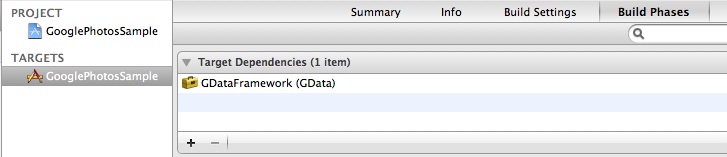
Target Dependencies

GDataFramework の代わりに GDtataTouchStaticLib を設定。

OS X 版はGDataFramework

iOS版はGDataTouchStaticLibにする

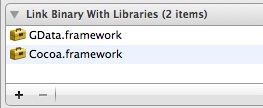
Link Binary With Libraries

GDataFramework の代わりに GDtataTouchStaticLib を設定。
さらに、libxml2 も必要だった。

OS X版はGDataFramework

iOS版はlibGDataTouchStaticLibとlibxml2が必要

Header Search Path

OSXでは Framework Search Path を指定する。Framework にヘッダファイルも含まれるためだろう。

iOSでは、実際のヘッダファイルの場所を指定。API の Source フォルダの下(Recursiveに指定)と、libxml2 のフォルダを指定する。なお、Source フォルダの場所を指定するために、GDATA_SRC というユーザー定義を作成した。

OS X

iOS

ヘッダファイルのimport

OSX版のサンプルでは、

#import "GooglePhotosSampleWindowController.h"
#import "GData/GDataServiceGooglePhotos.h"
#import "GData/GDataEntryPhotoAlbum.h"
#import "GData/GDataEntryPhoto.h"
#import "GData/GDataFeedPhoto.h"

このように GData/ をつけてヘッダファイルを指定していた。Sourceの下にある実際のヘッダファイルは GData というフォルダの下にはないが、このような書き方が可能なのは、デッダファイルはFrameworkに含まれているからだと思われる。

iOS版ではこのような書き方はできないが、Header Search Path に実際のヘッダファイルの場所を再帰的に検索するよう指定したので、フォルダの階層は意識せず、ただヘッダファイル名だけを指定すればよい。

処理

OSX版のサンプルでは、ユーザー名とパスワードを入力してボタンを押すと、アルバムの一覧を表示し、選択されたアルバムの情報と写真の一覧を表示し、画像のアップロードなども可能だが、今回はまず、ただAPIが使えることを確かめたかっただけなので、できるだけシンプルに、だたアルバムの情報を取得して表示するだけにした。OSX版のソースから、アルバムの情報を取得する処理だけを取り出してコピーした。ユーザー名とパスワードはソース内に直書き(なので、事項する際は自分のアカウントで書き換えてください)、アルバムの一覧を取得して、リストの先頭のアルバムの情報だけを表示する。

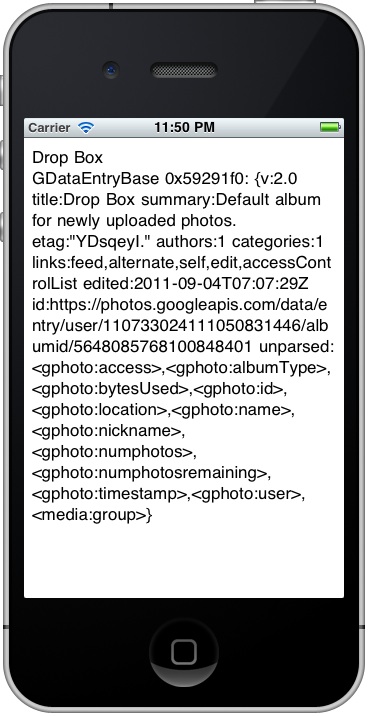
実行画面

最初の行はアルバムのリストで、この例では1つ(DropBox)だけ。このDropBoxの情報を下に表示している。