別にMainのViewをもつActivityの中で使用するCustom Dialog を作成してみる。
Dev Guideにある以下のページを参照。丁寧に書いてあるので、ほぼこのページとそこのリンクだけの情報で作成できる。
http://developer.android.com/guide/topics/ui/dialogs.html#CustomDialog
今回は、タイマーの時間をセットするだけの簡単なものなので、AlertDialogを使用する。
引っかかってしまった点が1つだけあった。Dev GuideにあるAlertDialogを作成するコード例では
OnCreatedDialog() でDialogをcreateするコードの中で、LayoutInflater を取得するところが
    	Context mContext = getApplicationContext();
    	LayoutInflater inflater = (LayoutInflater) mContext.getSystemService(LAYOUT_INFLATER_SERVICE);
となっていたが、Activityクラスで作成するときは、Context は getApplicationContext() で取得するものでは例外が発生してしまった。API Demo のソースなどを参照し、下のように this つまりActivity クラス自身を指定すると例外はなくなった。
LayoutInflater inflater = (LayoutInflater) this.getSystemService(LAYOUT_INFLATER_SERVICE);
このあとは、DevGuideのサンプル通りに、以下のようなコードで実装できた。
なお、setView() でカスタムのレイアウトを指定しても、setNegativeButton()、setPositiveButton() を指定すると、ボタンはそのレイアウトの下に表示された。つまり、カスタムのレイアウトのなかにはOKやCancelのボタンは不要ということになる。
    	AlertDialog.Builder builder;
    	AlertDialog dialog;
    	LayoutInflater inflater = (LayoutInflater) this.getSystemService(LAYOUT_INFLATER_SERVICE);
    	final View layout = inflater.inflate(R.layout.timer_setting_dialog, null)
        //Custom Dialog 内のコントロールの初期化処理
        Spinner spn1 = (Spinner)layout.findViewById(R.id.spinner1);
        ArrayAdapter adapter1 = new ArrayAdapter(this, android.R.layout.simple_spinner_item);
        adapter1.setDropDownViewResource(android.R.layout.simple_spinner_dropdown_item);
        for(int i = 0; i<100; i++) {
        	adapter1.add(String.format("%02d", i));
        }
        spn1.setAdapter(adapter1);
        //(省略)

        //AlertDialog.Builderを使う
    	builder = new AlertDialog.Builder(this);
    	builder.setView(layout);
    	builder.setNegativeButton(R.string.cancel, new DialogInterface.OnClickListener() {
            public void onClick(DialogInterface dialog, int whichButton) {
            }
        });
    	builder.setPositiveButton(R.string.ok, new DialogInterface.OnClickListener() {
            public void onClick(DialogInterface dialog, int whichButton) {
                //(省略)
            }
        });
    	dialog = builder.create();
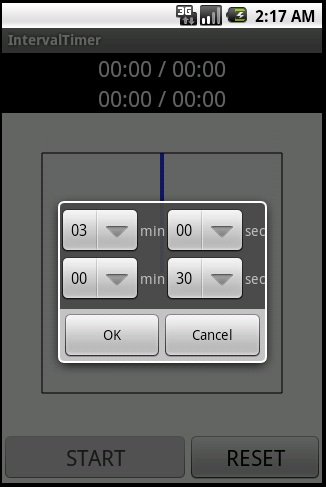
Custom Dialog
 スマホアプリの自習帳
コメントを残す