Picasaを使う(iPhone)でPicasaWebAlbumのAPIでアルバム一覧を取得するところまでやったので、今回は画像のプレビューまで実装してみた。(ソース)
iPhone版の画面
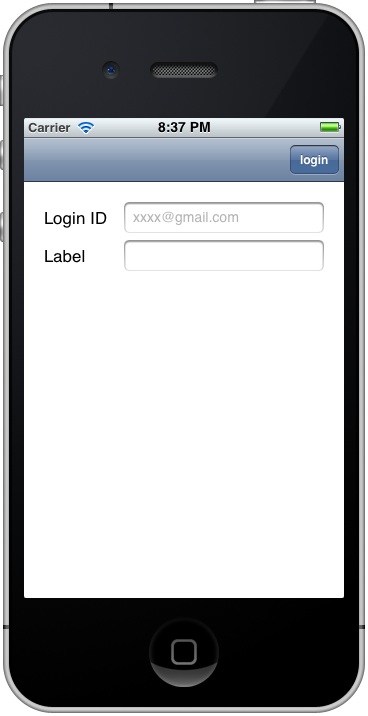
Login画面(iPhone)
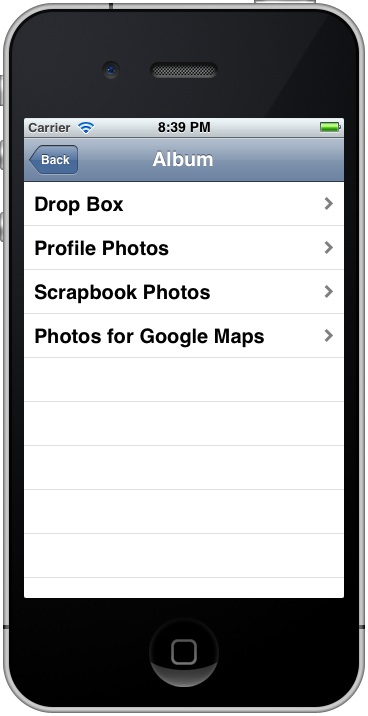
Album一覧(iPhone)

写真一覧(iPhone)
iPad版の画面
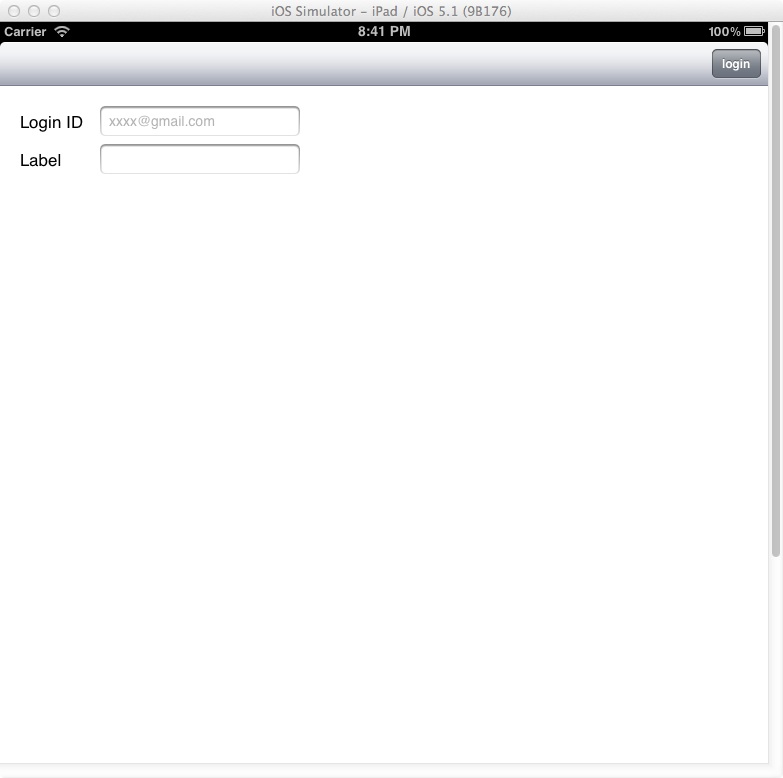
Login画面(iPad)
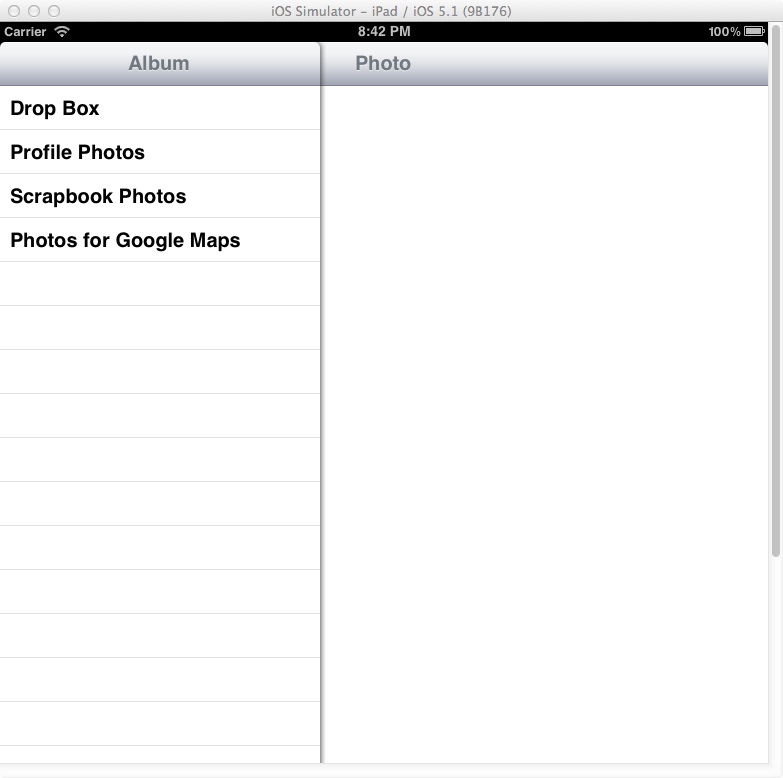
Album一覧(iPad)
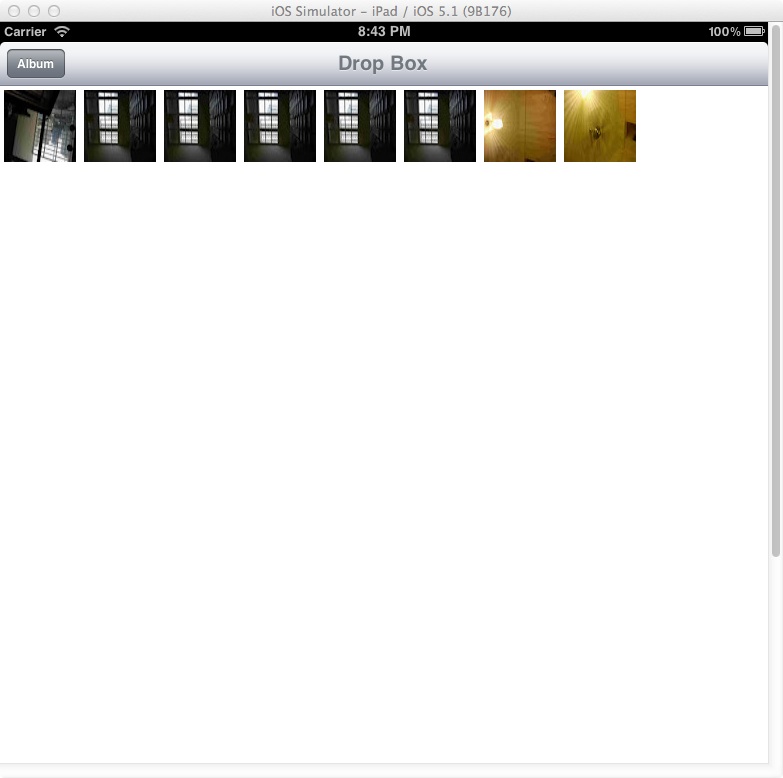
写真一覧(iPad)
Master-Detail Application
アルバムと画像を一覧表示するので、プロジェクトは Master-Detail Application で作成。 ただし最初の画面はログイン画面に変更する。「Navigation-basedだけど最初の画面はTableViewにしたくないとき」の要領を参考にするが、XCodeのバージョンが上がっているのと、iPadにも対応できるようにするため、少し要領が異なる。
1.新たにUIViewControllerクラスを追加(XIBファイル付きで)
➡ここは同じ
2.MainWindow.xib の Objects 内にある Navigation Controller の下の Root View Controller について…
➡そもそもMainWindow.xibが無くなっていて、AppDelegate の didFinishLaunchingWithOptions でNavigationControllerのRootViewControllerを設定するコードがある。ここを書き換えて、上で追加したViewで置き換える。 ログインしたときの動作は、iPhoneならアルバム一覧を表示、一方、iPadなら左(Master view)にアルバム一覧と右(Detail view)に詳細表示を2つ同時に表示するのがMaster-detailの標準的なデザインになるようなのだが、これらはコードで書き分けなければならない。
    if ([[UIDevice currentDevice] userInterfaceIdiom] == UIUserInterfaceIdiomPhone) {
        if(self.masterViewController == nil) {
            self.masterViewController = [[PCSWMasterViewController alloc] initWithNibName:@"PCSWMasterViewController_iPhone" bundle:nil];
        }
        [self.navigationController pushViewController:self.masterViewController animated:YES];
    } else {
        PCSWMasterViewController *masterViewController = [[PCSWMasterViewController alloc] initWithNibName:@"PCSWMasterViewController_iPad" bundle:nil];
        UINavigationController *masterNavigationController = [[UINavigationController alloc] initWithRootViewController:masterViewController];

        PCSWDetailViewController *detailViewController = [[PCSWDetailViewController alloc] initWithNibName:@"PCSWDetailViewController_iPad" bundle:nil];
        UINavigationController *detailNavigationController = [[UINavigationController alloc] initWithRootViewController:detailViewController];

        self.splitViewController = [[UISplitViewController alloc] init];
        self.splitViewController.delegate = detailViewController;
        self.splitViewController.viewControllers = [NSArray arrayWithObjects:masterNavigationController, detailNavigationController, nil];

        PCSWAppDelegate* delegate = UIApplication.sharedApplication.delegate;
        delegate.window.rootViewController = self.splitViewController;

    }
アルバム一覧を取得してMaster view(TableView)に表示させる。一覧の取得はFetchで非同期処理なので、完了したらコールバックメソッドが呼び出される。ここからさらにMaster view に定義したメソッドを呼び出して一覧を表示させる。あとで再利用しやすくするため、ここはインターフェイスを定義してみたが、ここで初歩的なエラーにひっかかってしまった。PCSWPicasaFetchAlbumList という名前のインターフェイスを定義したが、この参照を定義するのに、
PCSWPicasaFetchAlbumList* mMasterView;
id<PCSWPicasaFetchAlbumList> mMasterView;
のように書かないといけないらしい。
画像の取得
アルバムを選択したら、画像の一覧を取得し、Detail view にサムネイル表示する。アルバムの写真一覧取得、各写真のデータ取得、と2つのFetchが必要。
// for the album selected in the top list, begin retrieving the list of
// photos
- (void)fetchByAlbum:(GDataEntryPhotoAlbum*) album {

    if (album) {

        // fetch the photos feed
        NSURL *feedURL = [[album feedLink] URL];
        if (feedURL) {
            [self setPhotoFeed:nil];
            [self setPhotoFetchError:nil];
            [self setPhotoFetchTicket:nil];

            GDataServiceGooglePhotos *service = [self googlePhotosService];
            GDataServiceTicket *ticket;
            ticket = [service fetchFeedWithURL:feedURL
                                      delegate:self
                             didFinishSelector:@selector(photosTicket:finishedWithFeed:error:)];
            [self setPhotoFetchTicket:ticket];

        }
    }
}

// photo list fetch callback
- (void)photosTicket:(GDataServiceTicket *)ticket
    finishedWithFeed:(GDataFeedPhotoAlbum *)feed
               error:(NSError *)error {

    [self setPhotoFeed:feed];
    [self setPhotoFetchError:error];
    [self setPhotoFetchTicket:nil];

    [mDetailView didFetchPhotoList:self];
}

#pragma mark Download a photo

- (void)fetchPhotoTitle:(NSString*)title URL:(NSURL*)downloadURL ImageView:(UIImageView*)imageView {

    // requestForURL:ETag:httpMethod: sets the user agent header of the
    // request and, when using ClientLogin, adds the authorization header
    GDataServiceGooglePhotos *service = [self googlePhotosService];
    NSMutableURLRequest *request = [service requestForURL:downloadURL
                                                             ETag:nil
                                                       httpMethod:nil];
    // fetch the request
    GTMHTTPFetcher *fetcher = [GTMHTTPFetcher fetcherWithRequest:request];
    [fetcher setAuthorizer:[service authorizer]];

    // http logs are easier to read when fetchers have comments
    [fetcher setCommentWithFormat:@"downloading %@", title];

    [fetcher beginFetchWithDelegate:self
                          didFinishSelector:@selector(downloadFetcher:finishedWithData:error:)];
    [fetcher setProperty:imageView forKey:@"ui imageview"];
}

- (void)downloadFetcher:(GTMHTTPFetcher *)fetcher
       finishedWithData:(NSData *)data
                  error:(NSError *)error {
    if (error == nil) {
        // successfully retrieved this photo's data; save it to disk
        //GDataEntryPhoto *photoEntry = [fetcher propertyForKey:@"photo entry"];
        UIImageView *imageView = [fetcher propertyForKey:@"ui imageview"];
        UIImage* image = [UIImage imageWithData:data];
        [imageView setImage:image];
    }
}
サムネイル画像のURLがAPIでは取得できなかった。XMLの中にはあるのだが・・・。仕方ないので、画像のファイル名の前に”/72s/”を追加して取得することにした。
        NSString* src_uri = photoEntry.content.sourceURI;
        NSString* src_uri_filename = src_uri.lastPathComponent;
        NSString* src_uri_dir = src_uri.stringByDeletingLastPathComponent;
        NSString* thumbnail_uri = [NSString stringWithFormat:@"%@/s72/%@", src_uri_dir, src_uri_filename];
        NSURL *downloadURL = [NSURL URLWithString:thumbnail_uri];
        NSString* title = photoEntry.title.stringValue;

        [picasa fetchPhotoTitle:title URL:downloadURL ImageView:imageView];
同じものを2回Fetchするとエラーになる?
一度選択してサムネイルを表示したアルバムを再度選択すると、エラーになってしまった。きっと、一度セッションを切って取得し直すようにするか、一度取得したデータを保持しておいて、再取得しないようにすればいいのだろうが、面倒だなと思って悩んでいたら、GDataServiceBase.m で以下のコメントを発見。
// Turn on data caching to receive a copy of previously-retrieved objects.
// Otherwise, fetches may return status 304 (Not Modified) rather than actual
// data
- (void)setShouldCacheResponseData:(BOOL)flag {
  [fetcherService_ setShouldCacheETaggedData:flag];
}
これをYESに設定すると、エラーが起こらなくなった。Cacheの処理まで面倒みてくれるとはさすがですが、サンプルコードにも入っていなかったので、見落とすところだった。
Popover
Master-Detail view では、画面を縦にしたときはMaster(左側)のViewは表示されないのがデフォルトです。しかし、最初に開いたときは何もAlbumが選択されていないので、ただの空白の画面が表示されてしまう。これでは使いにくいので、まだアルバムが選択されていないときは、Master view が表示されるように、configureView メソッド内にコードを追加。
- (void)configureView
{
    // Update the user interface for the detail item.
    // サムネイルのフェッチを開始する処理
    if (self.detailItem) {
        GDataEntryPhotoAlbum *albumEntry = (GDataEntryPhotoAlbum*)self.detailItem;
        self.title = albumEntry.title.stringValue;

        // fetch the photos feed
        PCSWAppDelegate* appDelegate = (PCSWAppDelegate*)UIApplication.sharedApplication.delegate;
        [appDelegate fetchPhotoByDetailView:self :albumEntry];

    }

    // アルバムが選択されていなければ、アルバム選択のViewを表示
    if (self.detailItem == nil) {
        [self.masterPopoverController presentPopoverFromBarButtonItem: self.navigationItem.leftBarButtonItem permittedArrowDirections:UIPopoverArrowDirectionAny animated:YES];
    }
    else {
        [self.masterPopoverController dismissPopoverAnimated:TRUE];
    }
}
 スマホアプリの自習帳
コメントを残す