「ゴルフのスコアカウンター(iPhone版)」で、PARの選択にドロップダウンリスト風にTableViewを使うように修正してみた。Windowベースで作成したアプリをNavigatorControl+TableViewで実装する仕組みに変更する。
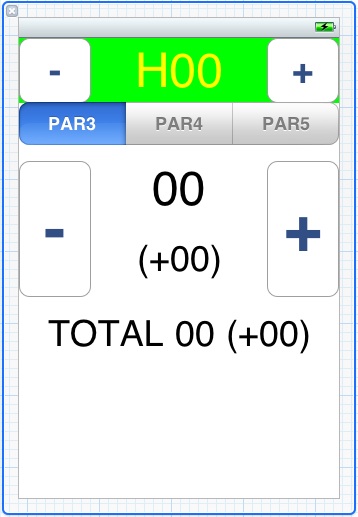
修正前のレイアウト

修正後の画面
1.NavigationControllerを nib ファイルに追加。
右側のライブラリからNavigationControllerを網の上にドロップすると、画面のイメージと左端にオブジェクトが追加される。

Navigatorコントロールを追加
2.Navigation Controller の Output を AppDelegate に追加
(1)View>Editor>Assistant にする
(2)nibウィンドウからNavigationControllerを右クリックしてAppDelegateのヘッダーファイルにドラッグ&ドロップ
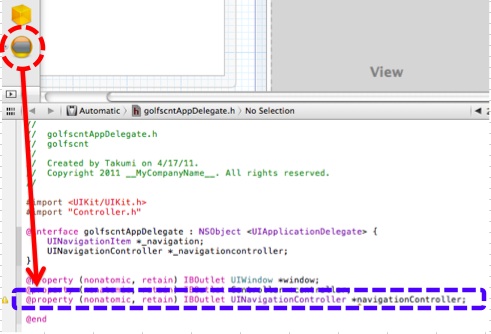
NavigationControllerのOutletを追加
3.Window の rootViewController をNavigator Controller にする
(1)nibウィンドウで Window を選択
(2)Connections Inspector の rootViewController の右側の丸印をドラッグして、2で追加した Navigation Controller の上にあわせる。

rootViewControllewを設定
4.TableViewControllerを上のnib に追加
右側のライブラリからNavigationControllerを網の上にドロップすると、画面のイメージと左端にオブジェクトが追加される。
5.TableViewController のクラスファイルを追加(RootTableViewControler)
6.Window にのっていたUIのコントロールを4で追加した TableViewController に移す
(1)TableViewController のヘッダー部分に下地となる View を追加し、その上にWindowからPAR選択部分の上にあるコントロール群をカット&ペースト
(2)TableViewController のフッター部分に下地となる View を追加し、その上にWindowからPAR選択部分の下にあるコントロール群をカット&ペースト
7.Controllerに作成していた、各コントロールのOutletとイベントハンドラをRootTableViewControlerにコピーし、nib上でOutletとコントローラー、およびイベントハンドラの結びつけを行う。
8.RootTableViewControler の Output を AppDelegate に追加
(1)View>Editor>Assistant にする
(2)nibウィンドウから RootTableViewControler を右クリックしてAppDelegateのヘッダーファイルにドラッグ&ドロップ
9.最初に表示される View を設定
ApplicationDelegate の didFinishLaunchingWithOptions で 2で作成したNavigationController の Outlet に 7で作成した RootTableViewControler の view を initWithRootViewController する。
10.RootTableViewControler に、dataSource のメソッドを実装。
★アイテムは1つしかないので。
- (NSInteger)numberOfSectionsInTableView:(UITableView *)tableView
{
  // Return the number of sections.
  return 1;
}

- (NSInteger)tableView:(UITableView *)tableView numberOfRowsInSection:(NSInteger)section
{
  // Return the number of rows in the section.
  return 1;
}
★メニュー内の各セルのスタイルとテキストを設定。サブメニューがあることを示す”>”を表示し(UITableViewCellAccessoryDisclosureIndicator)、現在の値(詳細)も表示するスタイル(UITableViewCellStyleValue1)に設定。
- (UITableViewCell *)tableView:(UITableView *)tableView cellForRowAtIndexPath:(NSIndexPath *)indexPath
{
  static NSString *CellIdentifier = @"Cell";

  UITableViewCell *cell = [tableView dequeueReusableCellWithIdentifier:CellIdentifier];
  if (cell == nil) {
    cell = [[[UITableViewCell alloc] initWithStyle:UITableViewCellStyleValue1 reuseIdentifier:CellIdentifier] autorelease];
  }

  // Configure the cell...
  cell.textLabel.text = @"PAR:";
  cell.detailTextLabel.text =
  [NSString stringWithFormat:@"%d",m_score_table[m_hole - 1][SCORE_TABLE_PAR]];

  cell.accessoryType = UITableViewCellAccessoryDisclosureIndicator;

  return cell;
}
11.nib に もう一つの TableViewController を追加、PAR数選択用
12.上の TableViewController のクラスファイルを追加(ParSelTableViewControler)
13.ParSelTableViewControler の Output を RootTableViewControler に追加
14.RootTableViewControler の didSelectRowAtIndexPath に、リストが選択されたときの動作を記述。PAR選択用のView(ParSelTableViewControler の view)に移動する。
- (void)tableView:(UITableView *)tableView didSelectRowAtIndexPath:(NSIndexPath *)indexPath
{
  // Navigation logic may go here. Create and push another view controller.
  golfscntAppDelegate * app = (golfscntAppDelegate*)[UIApplication sharedApplication].delegate;
  [app.navigationController pushViewController:parSelTableViewController animated:YES];
}
15.PAR選択用ViewのParSelTableViewControler に、dataSource のメソッドを実装。
★アイテムは3つ。
- (NSInteger)numberOfSectionsInTableView:(UITableView *)tableView
{
  // Return the number of sections.
  return 1;
}

- (NSInteger)tableView:(UITableView *)tableView numberOfRowsInSection:(NSInteger)section
{
  // Return the number of rows in the section.
  return 3;
}
★スタイルは標準。
- (UITableViewCell *)tableView:(UITableView *)tableView cellForRowAtIndexPath:(NSIndexPath *)indexPath
{
  static NSString *CellIdentifier = @"Cell";

  UITableViewCell *cell = [tableView dequeueReusableCellWithIdentifier:CellIdentifier];
  if (cell == nil) {
    cell = [[[UITableViewCell alloc] initWithStyle:UITableViewCellStyleDefault reuseIdentifier:CellIdentifier] autorelease];
  }

  // Configure the cell...
  int sel = indexPath.row;
  switch (sel) {
    case 0:
      cell.textLabel.text = @"PAR 3";
      break;
    case 1:
      cell.textLabel.text = @"PAR 4";
      break;
    case 2:
      cell.textLabel.text = @"PAR 5";
      break;
    default:
      break;
  }
  return cell;
}
16.ParSelTableViewControler の didSelectRowAtIndexPath に、リストが選択されたときの動作を記述。データを更新し、元のView(RootTableViewControler の view)に移動する。
- (void)tableView:(UITableView *)tableView didSelectRowAtIndexPath:(NSIndexPath *)indexPath
{
    // Navigation logic may go here. Create and push another view controller.
    golfscntAppDelegate * app = (golfscntAppDelegate*)[UIApplication sharedApplication].delegate;
    RootTableViewController* c = app.rootTableViewController;
    int hole = c->m_hole;
    switch (indexPath.row) {
        case 0:
            c->m_score_table[hole - 1][SCORE_TABLE_PAR]=3;
            break;
        case 1:
            c->m_score_table[hole - 1][SCORE_TABLE_PAR]=4;
            break;
        case 2:
            c->m_score_table[hole - 1][SCORE_TABLE_PAR]=5;
            break;
        default:
            break;
    }
    [app.navigationController popViewControllerAnimated:YES];
    [c update_display];
  }
}
 スマホアプリの自習帳
コメントを残す