Cocoa Application Tutorial (下)の Converterアプリを iPhone に移植してみた。
CocoaTutrial
プロジェクトの選択
NewProjectWindowBased
NewProjectWindowBased
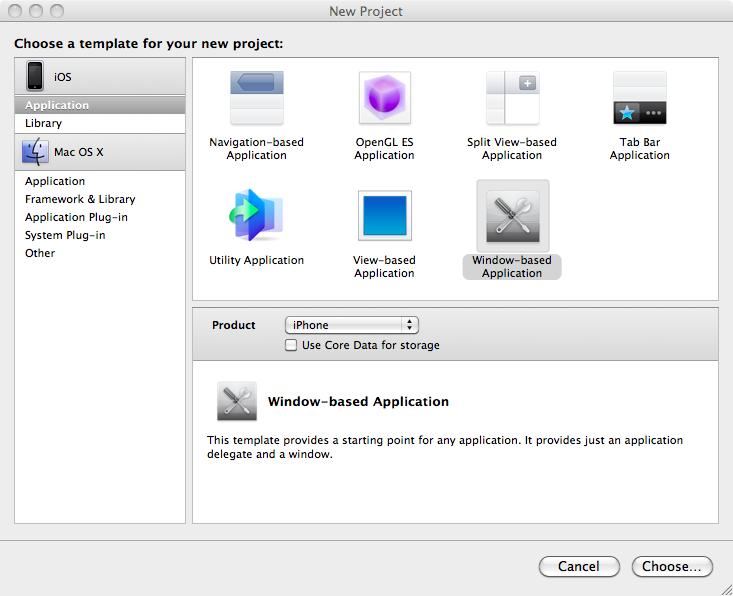
プロジェクトの新規作成では Window-based Application を選択。
このあとは、Cocoa Application Tutorial の指示通りにすすめればOK。(ただし、コントロールのクラス名はNSTextField → UITextField という要領で置き換える。)
変更すべき点
しかし、Controllerの定義と実装には、NSTextField と UITextField の違いにより若干変更が必要。
【ConverterController.h】
★NSTextField を UITextField に置き換える。
@interface ConverterController : NSObject {
	IBOutlet UITextField *amountField;
	IBOutlet UITextField *dollarField;
	IBOutlet UITextField *rateField;
	Converter *converter;
}
- (IBAction)convert:(id)sender;
@end
【ConverterController.m】
★NSTextField にはあるが UITextField にはないメソッドを書き換える。
@implementation ConverterController
- (IBAction)convert:(id)sender {
    float amount;
    converter = [[Converter alloc]init];

//    [converter setSourceCurrencyAmount:[dollarField floatValue]];
// UITextField には floatValue がない
    [converter setSourceCurrencyAmount: [dollarField.text floatValue]];

//    [converter setRate:[rateField floatValue]];
// UITextField には floatValue がない
    [converter setRate: [rateField.text floatValue]];

    amount =   [converter convertCurrency];

//    [amountField setFloatValue:amount];
// UITextField には floatValue がない
    [amountField setText: [[NSNumber numberWithFloat: amount] stringValue]];

//    [rateField selectText:self];
// UITextField には selectText がない。
// 書き換えができなかったので、保留。

// iOS にはガベージコレクタがないので、リリースする必要がある。
	[converter release];
}
@end
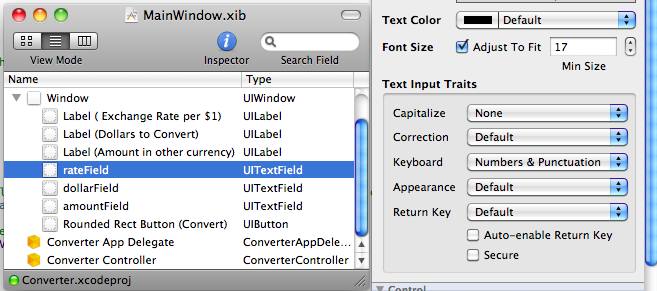
また、数値の入力フィールドについては、キーボードを Number&Punctuation に設定した方が便利。

シミュレーターでの実行結果
 スマホアプリの自習帳
コメントを残す